

Streamlit apps
Build and manage Streamlit apps in Keboola — a Python-only framework for quick data tools.
Streamlit is a Python-only framework for building data tools quickly. It’s a good fit for simple internal apps. For richer or customer-facing apps, use Python/JS — see Python/JS vs Streamlit for when to use which.
In this section
Section titled “In this section”- Design guide — layout and styling patterns for Streamlit apps.
- Lock the Streamlit version — pin your app to a specific Streamlit version.
Build a Streamlit app
Section titled “Build a Streamlit app”Prerequisites
Section titled “Prerequisites”- Basic Python programming knowledge
- Familiarity with data manipulation (pandas, numpy)
- Understanding of data visualization concepts
Create your first Streamlit app
Section titled “Create your first Streamlit app”- Navigate to Apps in your Keboola project.
- Click the + button to create a new app.
- Enter a custom prefix for your app’s URL.
- Select Streamlit as the technology stack.
- Choose a deployment method (Code or Git repository).

Deployment methods
Section titled “Deployment methods”There are two ways to deploy a Streamlit app: Code and Git repository.
For simple use cases where your Streamlit code fits on one page, paste the code directly into a text area. This deployment type is ideal for simple apps or for testing.

For example, paste Streamlit’s “Uber pickups in NYC” tutorial app:
import streamlit as stimport pandas as pdimport numpy as np
st.title('Uber pickups in NYC')
DATE_COLUMN = 'date/time'DATA_URL = ('https://s3-us-west-2.amazonaws.com/'            'streamlit-demo-data/uber-raw-data-sep14.csv.gz')
@st.cache_datadef load_data(nrows):    data = pd.read_csv(DATA_URL, nrows=nrows)    lowercase = lambda x: str(x).lower()    data.rename(lowercase, axis='columns', inplace=True)    data[DATE_COLUMN] = pd.to_datetime(data[DATE_COLUMN])    return data
data = load_data(10000)
st.subheader('Number of pickups by hour')hist_values = np.histogram(data[DATE_COLUMN].dt.hour, bins=24, range=(0, 24))[0]st.bar_chart(hist_values)
st.subheader('Map of all pickups')st.map(data)
You can also override Streamlit defaults like file upload size or browser settings without committing a .streamlit/config.toml file - see Streamlit configuration below.
To use additional Python packages that are not already included in the base image, enter them into the Packages field.

Git repository
Section titled “Git repository”If you have a complex application, push your app sources into GitHub and link the repository in this section. Provide the Project URL, choose the right branch, and finally, select your main entrypoint file.
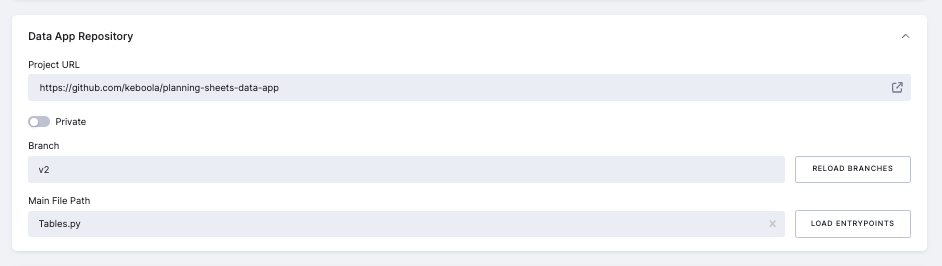
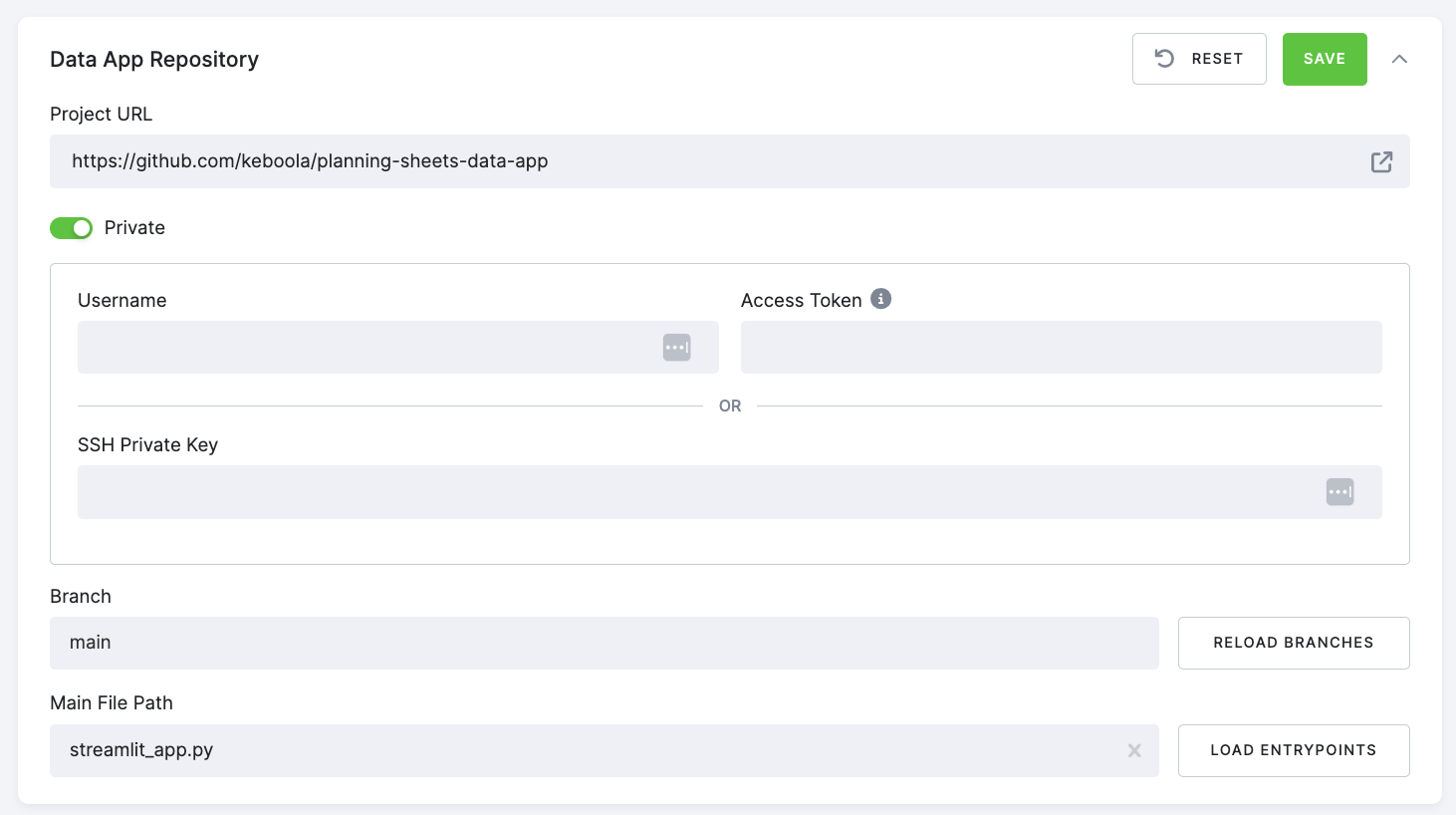
If you are using a private repository, you have two options to authenticate:
- With your GitHub username and personal access token
- With an SSH private key
Follow these steps to authenticate using your GitHub username and personal access token:
- Generate a personal access token on GitHub by going to your GitHub account settings, selecting Developer settings > Personal access tokens, and clicking Generate new token. Ensure the token has the necessary permissions to access the repository.
- In Keboola, navigate to the App Repository in your app configuration, check the
Privateoption, and enter your GitHub username and the personal access token you generated in step 1. - Click Save to authenticate with the private repository.
To authenticate using your SSH private key, follow the instructions in the GitHub manual. After generating your key, enter your SSH private key into the appropriate configuration field and click Save.
Secrets
Section titled “Secrets”To provide your app with environment variables or sensitive information like credentials, API keys, etc., use the Secrets section. These secrets will be injected into the secrets.toml file upon deployment of the app.
When you upload secrets.toml using the direct secrets upload UI, Keboola imports secrets as flat, top-level keys. Sections (TOML groups) are not preserved as nested structures. This means keys in the file become st.secrets["your_key"] after upload - you cannot access them as st.secrets["group"]["key"]. If your app expects nested secrets, use repo-based secrets.
Read more about the Streamlit secrets.
Direct secrets upload
Section titled “Direct secrets upload”You can upload a secrets.toml file directly through the UI when developing an app from code. The upload process:
- Overwrites existing secrets with matching names.
- Preserves existing secrets that don’t match the uploaded ones.
- Creates new secrets if they don’t exist.
- Does not delete any existing secrets.
Example secrets.toml structure:
aws_key = "YOUR_AWS_KEY"aws_secret = "YOUR_AWS_SECRET"openai = "YOUR_OPENAI_KEY"Best practices
Section titled “Best practices”- Always use descriptive secret names to improve clarity.
- Back up your secrets configuration regularly.
- Review existing secrets before uploading new ones to avoid unintentional overwrites.
- If you need nested/groups, use repo-based secrets. Direct upload does not support nested access.
Access Storage from app
Section titled “Access Storage from app”Your app reads and writes Keboola Storage the same way any app does — via Input Mapping, the Storage API at runtime, or real-time Storage Access. Keboola injects KBC_URL and KBC_TOKEN (the Storage token) into the app automatically. For the patterns and code, see Data access and Environment variables in the reference.
The keboola-streamlit package wraps these for Streamlit with helpers like keboola.read_table and keboola.write_table — see the Streamlit design guide.
Theming
Section titled “Theming”To configure theming in your app, you can select from predefined themes or create a custom theme. Predefined themes include Keboola, Light Red, Light Purple, Light Blue, Dark Green, Dark Amber, and Dark Orange. Each theme has a specified primary color, background color, secondary background color, text color, and font. Users choosing Custom can manually set these values.
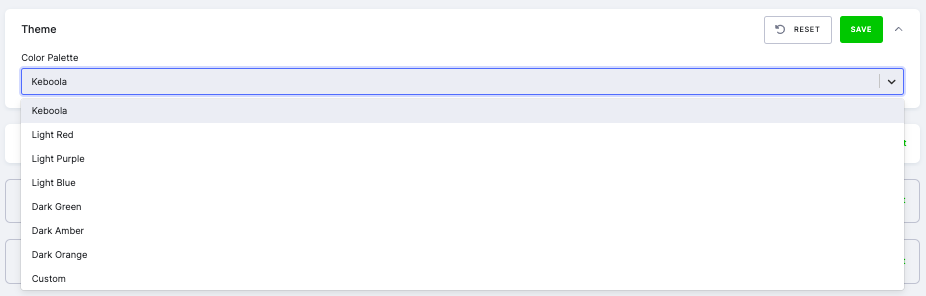
For Custom, users can select colors using the color pickers and choose the desired font from a list. For the exact color values of each predefined theme, see the predefined theme reference at the bottom of this page.
For Streamlit configuration beyond theming (e.g. upload size, server or browser settings), see Streamlit configuration below.
Streamlit configuration
Section titled “Streamlit configuration”Beyond the predefined themes above, you can inject any Streamlit configuration option into your app’s runtime config.toml directly from the app configuration in Keboola. This is useful when your app is deployed via the Code method (no Git repo, where you would otherwise commit a .streamlit/config.toml file) and you need to override Streamlit defaults such as upload size, server settings, or browser behavior.
Setting a custom config.toml
Section titled “Setting a custom config.toml”In your app configuration, switch to the raw JSON editor and add a config.toml string under parameters.dataApp.streamlit:
{ "parameters": { "dataApp": { "streamlit": { "config.toml": "[server]\nmaxUploadSize = 500\n" } } }}The data app runtime extracts that string at startup and merges it into Streamlit’s runtime config in this order, with later values winning:
- Streamlit’s built-in defaults
- Keboola’s runtime defaults (sets
[server] address = "0.0.0.0"and[browser] gatherUsageStats = false) - Your repository’s
.streamlit/config.toml(if Git-deployed) - The
config.tomlstring injected via the app configuration above
Common use cases
Section titled “Common use cases”Increase st.file_uploader size limit. Streamlit defaults to 200 MB. To accept larger files:
[server]maxUploadSize = 500Disable usage stats:
[browser]gatherUsageStats = falseStreamlit theme options not exposed in the Theming form (e.g. base = "dark", additional font controls, newly-added Streamlit theme keys) - see Streamlit’s theme reference.
Note on theming: the Theming UI reads and rewrites the same
config.tomlfield. Non-theme sections you set here (e.g.[server],[browser]) are preserved when you save changes through the Theming UI. However, the Theming UI overwrites the[theme]section on save, so prefer the Theming UI when a value is available there - and use this raw JSON path for theme keys it doesn’t expose.
Base image
Section titled “Base image”When the app is deployed, the code you provide is injected into the Streamlit base Docker image. You select a backend version when deploying; each version defines the Python version, Streamlit version, and a set of pre-installed packages you can use without adding them to the Packages field.
For the list of backend versions, supported Python versions, and the full pre-installed package list, see Backend versions in the reference.
AgGrid Enterprise license
Section titled “AgGrid Enterprise license”The AgGrid Enterprise License is available for Streamlit apps in Keboola, offering enhanced data manipulation capabilities, including:
- Inline dataset editing.
- Advanced features such as pivoting, filtering, and sorting.
- A professional interface, free from the “trial use only” watermark.
Ensure your app is configured to use the AgGrid component to take advantage of these enhanced features.
How to enable the license
Section titled “How to enable the license”The enterprise license is pre-configured for all Keboola stacks, so no additional setup is required for supported applications.
To access the license key in your Streamlit app, use the following code:
import streamlit as stfrom keboola_streamlit import KeboolaStreamlit
URL = st.secrets["kbc_url"]TOKEN = st.secrets["kbc_token"]
keboola = KeboolaStreamlit(URL, TOKEN)license_key = keboola.aggrid_license_key
You can use this license_key directly in AgGrid.
Reference implementation: Keboola Streamlit Integration
Predefined theme reference
Section titled “Predefined theme reference”Color values for each predefined theme. All use the Sans Serif font. Choose Custom to set your own.
| Theme | Primary | Background | Secondary background | Text |
|---|---|---|---|---|
| Keboola | #1F8FFF | #FFFFFF | #E6F2FF | #222529 |
| Light Red | #FF5D5D | #FFFFFF | #FFE6E6 | #222529 |
| Light Purple | #9A6DD7 | #FFFFFF | #F2E6FF | #222529 |
| Light Blue | #0000B2 | #FFFFFF | #E6E6FF | #222529 |
| Dark Green | #4CAF50 | #222529 | #3D4F41 | #FFFFFF |
| Dark Amber | #FFC107 | #222529 | #4A3A24 | #FFFFFF |
| Dark Orange | #FFA500 | #222529 | #4A3324 | #FFFFFF |